

Starts with the computer, without getting in front
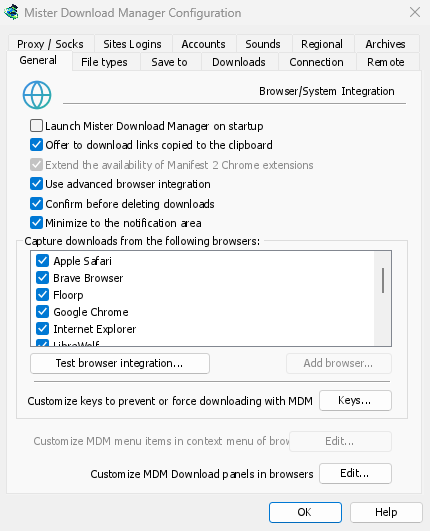
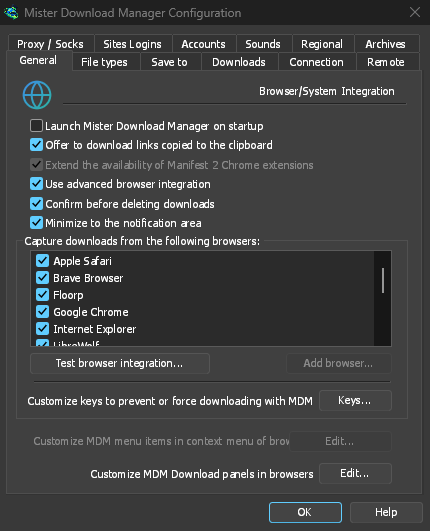
Tick Launch Mister Download Manager on startup in Options → General and MDM starts when you sign in, hidden, its icon in the notification area. Its downloads, queues, the Scheduler and downloads from the browser all run from there. Click the icon, or start MDM again, and the window opens as usual.
The option is off until you tick it. On Linux and macOS MDM starts with your session the same way. A portable copy can't start with Windows, since that needs the registry, so the option is greyed there.
One click hides a download's window
A download's progress window has a Hide to the notification area button: a short dash with an arrow down to the corner. On Windows it sits in the title bar, left of Minimize, and in the title bar's menu (Alt+Space). On Linux and macOS it is at the end of the tab row. The download carries on.
To see it again, right-click the tray icon and choose it under Downloads in progress, which lists every running download. Double-clicking the download in the list brings its window back too.
Minimize sends windows to the tray as well
With Minimize to the notification area on in Options → General (it is on by default), Minimize hides the main window, and a progress window, in the notification area instead of leaving them on the taskbar. Closing the main window does the same: MDM keeps running until you choose Tasks → Exit or Exit in the tray menu.
The tray menu also has Add new download, Add batch download, the Speed Limiter, the Scheduler, the main download queue and Options.
Light while it waits
Hidden in the notification area, MDM hands the memory it isn't using back to the system. Task Manager's Memory for MDM drops from about 50 MB to under 10 MB there, and MDM gives memory back again every 10 minutes while it stays hidden. On Linux it does the same with its free memory.
Where there is no tray
All of this needs a notification area that shows MDM's icon. Windows and macOS have one, and so do most Linux desktops (KDE, GNOME with its AppIndicator extension, waybar's tray). On a desktop without one, MDM starts minimized instead, closing the window quits MDM, and Minimize to the notification area is greyed. In a Wayland session the main window stays minimized in the dock, because Wayland can't hide a window.
Free, open source, no ads, no trial.
Download Mister Download Manager