
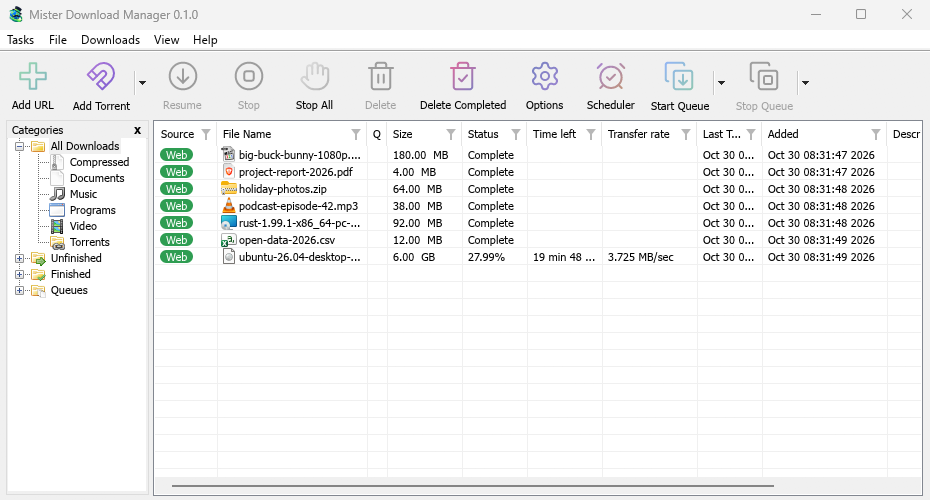
Mister Download Manager (MDM) is a free download manager for Windows. It is laid out the way Internet Download Manager users expect: a toolbar, categories on the left, one list of downloads and a browser extension that hands downloads to it.
These pages explain each part of the program. The tutorials walk through the things people do most, one task each.
Start here
- Getting started — install MDM (setup, portable or zip), choose a language and find your way around the main window.
- Your first download — a two-minute walk-through from copied link to opened file.
Downloading
- Adding downloads — Add URL, the clipboard, the drop target, batch downloads and lists of links, and Start Download versus Download Later.
- Browser integration — the extension for Chrome, Edge, Brave and Firefox, which downloads it takes, and what happens when MDM isn't running.
Organising
- The download list — columns, filters, the categories tree, selecting many downloads, finding one, and deleting downloads with or without their files.
- Queues and the Scheduler — run downloads a few at a time, start and stop them by the clock, and turn the computer off when they are done.
Speed and connections
- Connections and speed — the progress window, how MDM splits a file over several connections, resuming, and the Speed Limiter.
Video and torrents
- Video downloads — download a video from its page (YouTube, Vimeo and many more) with yt-dlp.
- Torrents — magnet links and .torrent files, choosing files, and sharing.
Settings
- Options — every page of the Options window.
- Languages — the 86 interface languages, right-to-left layouts, and how to help translate.
- Portable mode — run MDM from a folder or a USB stick without installing it.
- Keyboard shortcuts — every key the main window answers.
- Command line and automation — IDM's command-line switches, the
misterdownloadmanager-clitool, and the automation API other programs can use. - AI assistants (MCP) — let Claude, Cursor, VS Code or another MCP assistant list, add, pause and remove your downloads.
Tutorials
- Download a file — copy a link, add it, open the file.
- Catch downloads from your browser — set up the extension so clicked downloads go to MDM.
- Download overnight — queue files and let the Scheduler start them at night.
- Resume a broken download — continue after a cut connection, a crash or an expired link.
- Keep some speed for everything else — cap MDM so browsing and calls stay smooth.
- Download a video from a page — pick a quality and save a video.
- Carry MDM on a USB stick — the portable copy, with downloads saved to the stick.
- Find a download in a long list — Find, Find Next and column filters.
Help
- Troubleshooting — what to check when a download fails, the browser doesn't hand over a download, or a schedule doesn't start.
- Releases — download the latest version.
- Report a problem — or use Help → Report a problem in MDM, which fills in your version, system and how MDM was installed for you.
Screenshots in these docs show the light theme unless noted. MDM follows Windows' dark mode: when Windows is set to dark, MDM is dark too.
Free, open source, no ads, no trial.
Download Mister Download Manager