
Open Downloads → Options, or click Options on the toolbar. The window has eight pages on two rows of tabs. OK saves your changes; closing the window or pressing Esc throws them away.
Some buttons are greyed. They belong to features that aren't built yet.
General
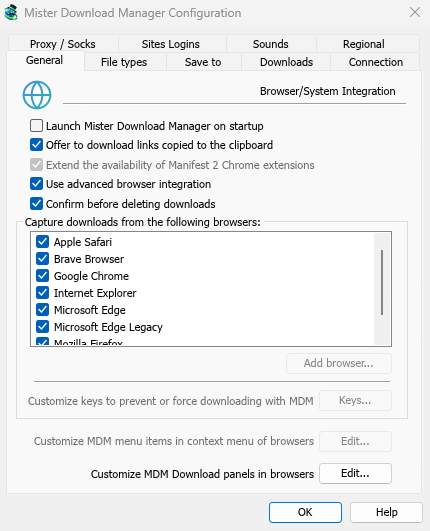
- Launch Mister Download Manager on startup — start MDM when you sign in to Windows. Off by default. Greyed in a portable copy, which writes nothing to the registry.
- Offer to download links copied to the clipboard — when you copy a link whose file type is on the File types page, Download File Info opens with it, ready to start (or the download starts at once, with Show start download dialog off). On by default.
- Use advanced browser integration — let the browser extension hand downloads to MDM. Turn it off to keep every download in the browser.
- Confirm before deleting downloads — ask before taking downloads off the list. On by default; Don't show this dialog again in that question turns it off, and ticking it here turns it back on.
- Capture downloads from the following browsers — untick a browser to leave its downloads alone.
- Customize MDM Download panels in browsers → Edit... — the download button over videos on web pages: turn it off, or list the sites it never shows on (separate them by spaces;
*.example.comcovers its subdomains). See Browser integration.
See Browser integration.
File types
- Automatically start downloading the following file types — the file types the browser hands over (and the clipboard picks up). Separate them by spaces;
*matches any characters, as inR0*. Default puts the original list back. - Don't start downloading automatically from the following sites — sites whose downloads stay in the browser, separated by spaces.
*.example.comcovers every part of a site. Default puts the original list back.
Save to
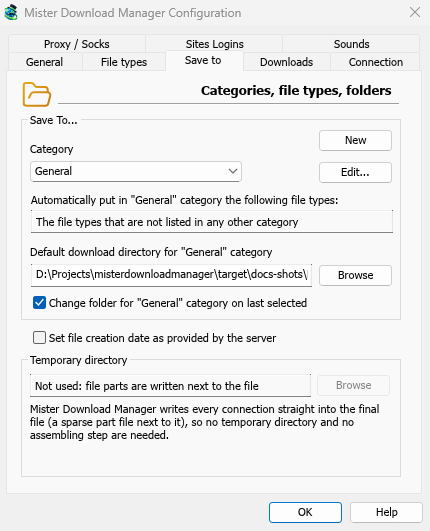
- Category — choose a category to see and change its settings below.
- New — make your own category. Edit... changes the selected one: its folder, and for your own categories its name and file types.
- Automatically put in "…" category the following file types — the file types that go to this category.
- Default download directory for "…" category — the category's folder. Type a path or click Browse.
- Change folder for "…" category on last selected — when you pick another folder in Download File Info, it becomes the category's folder from then on. On by default. (It sets the first state of Remember this path in that window.)
- Set file creation date as provided by the server — give finished files the date the server reports, not the date you downloaded them.
MDM doesn't use a temporary folder: every connection writes straight into the final file's place, so there is nothing to put together at the end.
Downloads
- Show start download dialog — show Download File Info for each new download. With it off, downloads start at once, or only join the queue if you tick Do not start downloading, only add files to the queue.
- Show download complete dialog — show Download complete when a file finishes.
- Start downloading immediately while displaying "Download File Info" dialog — on by default, so the download is already under way while you choose a folder.
- Show queue selection panel on pressing "Download Later" button — ask which queue; off puts it in the Main download queue.
- Show queue selection panel on closing batch download dialogs — the same for batch downloads.
- Ignore file modification time changes when resuming a download — for servers that report a new date for the same file each time. Without it, such a server makes every resume start over.
- If a duplicate download link is added — ask, add it with a numbered name, overwrite the old one, or open the finished one / resume the unfinished one.
- User-Agent for manually added downloads — how MDM names itself to servers for downloads you add yourself. Downloads from the browser use the browser's own User-Agent.
Connection
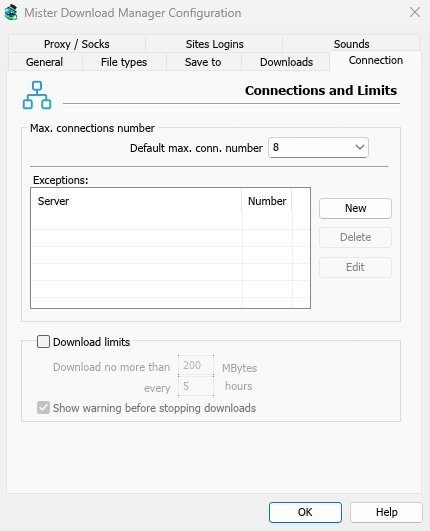
- Default max. conn. number — how many connections each download may use: 1, 2, 4, 8 (the default), 16, 24 or 32.
- Exceptions — a different number for some servers. New adds one (the server's name and the number of connections); Edit and Delete change or remove the selected one. Rows marked (auto) are limits MDM learned by itself from servers that refused more connections. They can't be edited and fade away by themselves.
- Download limits — download no more than a set amount every few hours. The same setting is in the Scheduler; see Queues and the Scheduler.
More in Connections and speed.
Proxy / Socks
- No proxy/socks — connect directly. This is the default.
- Use system settings — use the proxy set in Windows.
- Use automatic configuration script — the proxy auto-config (PAC) script your network gives: type its address (
http://…/proxy.pac, or a file). MDM fetches it and asks it which proxy each download goes through (PROXY,SOCKSorDIRECT), as browsers do. Until it has been fetched, or if it can't be, MDM uses the system's settings. - Manual proxy/socks configuration — type the proxy's address, Port, and a UserName and Password if it needs them, then tick the protocols it is for (http, https). For a SOCKS proxy, write the address as
socks5://host. - Get System — fill in the manual fields from Windows' proxy settings.
- Use proxy/socks from a browser's request… — on by default. With No proxy/socks, it makes MDM use Windows' proxy settings, as browsers do.
- Use FTP in PASV mode — on by default: for FTP downloads MDM opens the data connections itself (passive mode), which works through routers and firewalls. Turn it off only for a server that needs active mode (the server connects back to you). FTP never goes through the proxy above, so its ftp box stays greyed. See FTP and FTPS.
Sites Logins
User names and passwords for sites that ask for them. New adds a row: the site (with a path if the login is only for part of it), the user name and the password. Edit and Remove change or delete the selected row. MDM uses the login for every download from that site. A login typed in Add URL (Use authorization) takes priority for that one download.
Sounds
Play a sound for Download complete, Download failed, Queue processing started and Queue processing stopped/finished. Tick an event, select it, click Browse... to choose a .wav file, and Play to hear it.
Regional
How dates and times are written in the list of downloads and the Scheduler.
- As the system's region writes them (the default) — Windows' region settings (Settings → Time & language → Region); on macOS and Linux, your language's usual way. In English the list keeps IDM's own date text.
- My own way — choose the date order (day, month, year; month, day, year; or year, month, day), a 12- or 24-hour clock, and the first day of the week in the Scheduler's calendar. Example shows the result.
Elsewhere
A few settings live outside this window:
- Downloads → Speed Limiter → Settings... — speed limits. See Connections and speed.
- Tasks → Torrent settings... — sharing and file associations. See Torrents.
- View → Dark Mode support and View → Language.
- Help → Check for updates... — Check for updates once a week is in that window.
Next steps
Free, open source, no ads, no trial.
Download Mister Download Manager