
After a few months the list can hold hundreds of downloads. Here are four ways to get to the one you want.
Find by name
- Press Ctrl+F (or Downloads → Find). Find file opens.
- Type part of the file's name.
- Click Find. The first match is selected.
- Press F3 to jump to the next match. The search wraps round to the top.
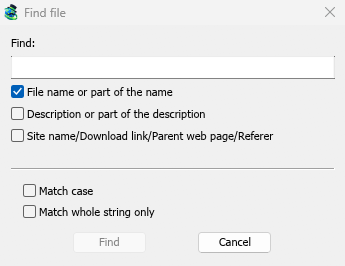
Find by description or address
In Find file, tick what to search:
- File name or part of the name — on by default.
- Description or part of the description — your notes.
- Site name/Download link/Parent web page/Referer — the address, the site's name and the page the download came from. Tick this to find everything from one site.
Match case tells capitals apart. Match whole string only finds only an exact, complete match.
Filter the list
Each column title has a faint funnel. Click it to keep only some rows:
- On Status, tick only Error to see the downloads that failed.
- On Source, tick only Torrent.
- On Q, tick In a queue or Not in a queue.
- On File Name, Description and the other columns, type a word.
A filtered column's funnel turns blue. Right-click a column title and choose Clear all filters to see everything again.
Narrow it down with categories and sorting
- Click Unfinished or Finished in the categories, or a category such as Video, to see only those downloads.
- Click a column title to sort: Added for the newest, Size for the biggest, File Name for A to Z. Click again to reverse.
- With the list selected, type the first letters of a name to jump straight to it.
Next steps
Free, open source, no ads, no trial.
Download Mister Download Manager