
MDM downloads BitTorrent files from magnet links and .torrent files. Torrents appear in the same list as other downloads, marked Torrent in the Source column, and can be queued and scheduled like them.
Add a torrent
- Click Add Torrent on the toolbar to choose a
.torrentfile. Or click the arrow next to it and choose Open torrent file... or Add magnet link... (also under Tasks). - Add torrent opens. Paste a magnet link into Torrent, or click ... to choose a
.torrentfile, then click Look up. - MDM reads the torrent and shows its files as a folder tree. A
.torrentfile is read at once. A magnet link first has to get the file list from other peers, which can take a minute or two. - Untick the folders or files you don't want. Select all and Select none help with big torrents. Selected shows how many files and how much data you picked.
- Check Save to. Files go to shows the exact folder. Torrents have their own category, so by default this is
Downloads\Torrents. - Click Download Now, or Later to add it to the list without starting.
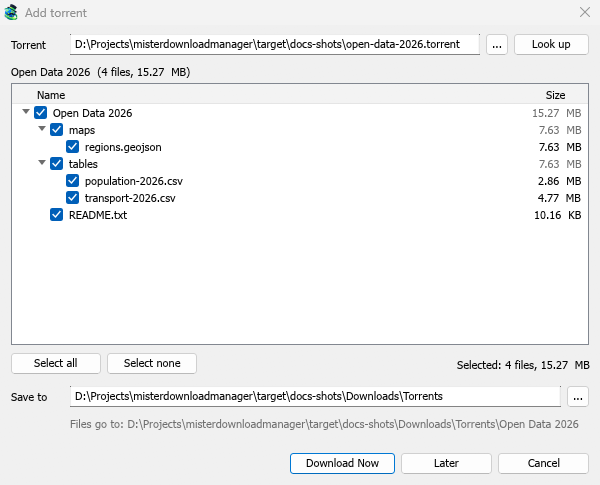
You can also paste a magnet link into Add URL, or drop a magnet link or a .torrent file on the drop target (Tasks → Show drop target). If a torrent is already in the list, MDM says so instead of adding it twice.
While it downloads
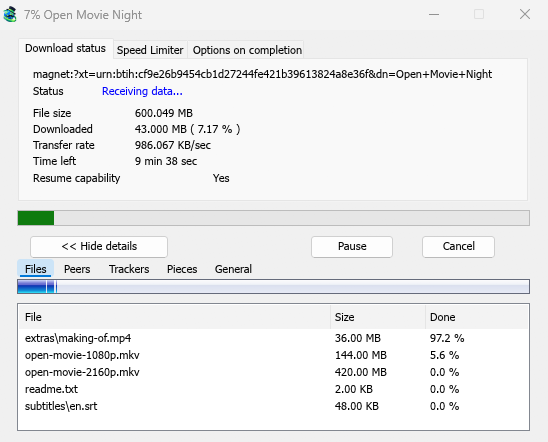
Double-click the torrent in the list to open its progress window. Besides the usual status, a torrent's window has five tabs:
- Files — each file, its size and how much of it is done. Files you unticked show Skipped.
- Peers — the computers you are downloading from, with how much you received from and sent to each.
- Trackers — the torrent's trackers. With none, peers come from the DHT and other peers.
- Pieces — a map of the torrent's pieces: there, partly there, or missing.
- General — the info hash, pieces, peers, how much was sent, the share ratio and the folder.
Torrent settings
Choose Tasks → Torrent settings... (or the arrow next to Add Torrent):
- Keep sharing torrents after they finish — off by default: a finished torrent stops, like any download. Turn it on to keep uploading to other peers after your download is complete.
- Open magnet links and .torrent files with Mister Download Manager — Windows then opens magnet links in your browser and
.torrentfiles in Explorer with MDM. This is for your Windows account only; a program you chose in Windows' Open with stays first. The setup can turn it on for you.
MDM starts its torrent engine the first time you add a torrent. If you never use torrents, it never listens for peers.
Next steps
Free, open source, no ads, no trial.
Download Mister Download Manager