
There are several ways to give MDM something to download. Most of them end in the same window, Download File Info, where you choose where the file goes.
Add URL
- Copy the file's address (in a browser: right-click the link → Copy link).
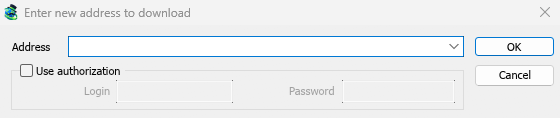
- Click Add URL on the toolbar, choose Tasks → Add new download, or press Ctrl+N.
- Enter new address to download opens. If the clipboard holds a web address, it is already filled in. The arrow at the end of Address lists the last 20 addresses you entered; pick one to use it again. Right-click the box for Cut, Copy, Paste, Delete and Select all.
- If the server needs a user name and password, tick Use authorization and type them.
- Click OK.
MDM takes http://, https://, ftp://, ftps://, ftpes:// and magnet: addresses. Anything else gets Invalid address.
If the address is a video's page (YouTube, Vimeo, TikTok and others), the video window opens instead. See Video downloads. A magnet link opens Add torrent; see Torrents.
FTP and FTPS
FTP downloads work like web downloads: several connections at once, pause and resume, and the same progress window.
ftp://— plain FTP.ftpes://— FTP secured with TLS from the start of the session (explicit FTPS,AUTH TLS, usually port 21). Use it when the server says it supports TLS.ftps://— implicit FTPS, port 990 unless the address gives another.
The server's certificate is checked against Windows' (or the system's) trusted certificates, as
for https://.
Logging in. Write the login in the address (ftp://user:password@server/folder/file.iso),
tick Use authorization, or save it in Options → Sites Logins. Without one, MDM logs in as
anonymous. The path is relative to the folder the login starts in; to start from the server's
root, write %2F after the server (ftp://server/%2Fpub/file.iso).
Resuming. MDM keeps the file's size and modification time. If either has changed when you resume, it says the file changed on the server instead of mixing two versions (Options → Downloads → Ignore file modification time changes skips the time check). The password is not written to the resume file next to the download: MDM gives it again when it resumes.
Connections. Passive mode is used by default. Options → Proxy / Socks → Use FTP in PASV mode switches it off for servers that only take active connections. FTP connects to the server directly, not through the HTTP proxy.
Browsers no longer download ftp:// links themselves. Right-click one and choose Download with
Mister Download Manager, or copy it and use Add URL.
Download File Info
MDM asks the server for the file's name and size, and shows them in Download File Info:
- URL — the address.
- Category — chosen from the file's type (Compressed, Documents, Music, Programs, Video or General). Each category has its own folder. + beside it makes a new category.
- Save As — the folder and file name. You can type another, pick one of the last 20 folders you saved to from the arrow at its end, or choose a folder with ....
- Remember this path for "…" category — tick it to make the folder you typed the category's folder from now on.
- Description — a note of your own. It shows in the list's Description column and Find can search it.
Then choose:
- Start Download (or Enter) — download now. The progress window opens.
- Download Later — add it to a queue without starting. See below.
- Cancel (or Esc) — add nothing.
By default MDM starts downloading while this window is open, so no time is lost while you decide. Cancel drops what it fetched. You can turn this off in Options → Downloads → Start downloading immediately while displaying "Download File Info" dialog.
If the folder doesn't exist yet, MDM asks Do you want to create it? before it starts.
Download Later
Download Later puts the download in a queue instead of starting it. By default MDM asks which one: pick the queue under Add to queue, and tick Start the queue now if you want it to run straight away. Cancel leaves the download in the list, in no queue.
To skip that question and always use the Main download queue, turn off Options → Downloads → Show queue selection panel on pressing "Download Later" button.
More about queues in Queues and the Scheduler.
From the clipboard
With Options → General → Offer to download links copied to the clipboard ticked (it is, unless you turned it off), when you copy a link to a file type in Options → File types (ZIP, EXE, MP4, PDF and many more), Download File Info opens with it filled in, ready for Start Download. Links to other pages are left alone. With Options → Downloads → Show start download dialog off, the download starts at once instead. Only links copied while MDM runs are taken, never one that was already there.
Drag and drop
- Choose Tasks → Show drop target. A small box with the MDM icon appears and stays on top of other windows.
- Drag a link from your browser onto it. MDM adds it as if you had used Add URL.
You can also drop magnet links and .torrent files on it. Drag the box to move it, and double-click it to bring the main window back. Right-click it for Show Mister Download Manager, Add new download and Hide drop target.
Batch download: many numbered files
For files whose names differ only by a number or a letter, such as photo001.jpg to photo150.jpg:
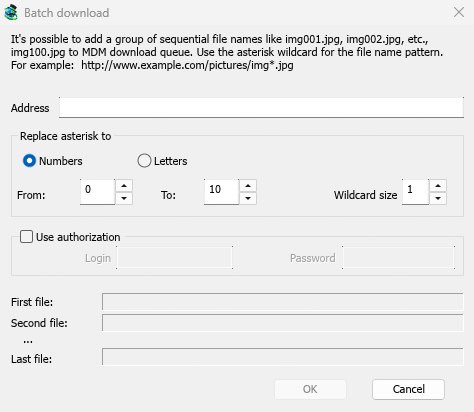
- Choose Tasks → Add batch download. (Tasks → Add batch download from clipboard fills in a copied address.)
- In Address, write the address with one asterisk where the number or letter changes:
https://example.com/photo*.jpg. - Under Replace asterisk to, choose Numbers or Letters, then From and To.
- For numbers, set Wildcard size to the number of digits. With 3, the files are
photo001.jpg,photo002.jpgand so on. - If the server needs a login, tick Use authorization.
- Check First file, Second file and Last file, then click OK.
The downloads go to a queue. As with Download Later, MDM asks which queue unless you turn off Options → Downloads → Show queue selection panel on closing batch download dialogs.
A list of links
To add every link in a text file:
- Choose Tasks → Import → From text file.
- Pick the file. Import downloads lists every web address MDM found in it.
- Untick the addresses you don't want (Select all and Select none help), then click OK.
The downloads join the Main download queue, ready to start. Tasks → Import → From IDM export file reads an .ef2 file, with each download's referrer and cookies.
To save your own list, use Tasks → Export → To text file (one address per line) or To IDM export file.
When the address is already in the list
By default MDM asks what to do when you add an address it already has. You can choose a fixed answer in Options → Downloads → If a duplicate download link is added:
- Show a dialog and ask what to do.
- Add the duplicate with a numbered file name
- Add the duplicate and overwrite the existing file
- If existing file is complete, show download complete dialog; otherwise resume it.
Next steps
- Send browser downloads to MDM →
- Watch a download in the progress window →
- Queue downloads for later →
Free, open source, no ads, no trial.
Download Mister Download Manager