
A download manager can fill your whole connection. These steps cap MDM so that browsing, video calls and games stay smooth.
Cap MDM as a whole (recommended)
- Choose Downloads → Speed Limiter → Settings....
- Tick Limit all downloads together to and type a speed in KBytes/sec. A good start is about two thirds of your connection's speed. (1 MByte/sec is about 1000 KBytes/sec.)
- Tick Only while I'm using the computer if you want full speed when you're away. MDM goes back to full speed after a minute without mouse or keyboard input.
- Click OK.
This cap is shared by every download, however many run at once. It works on its own; you don't need to turn the Speed Limiter on.
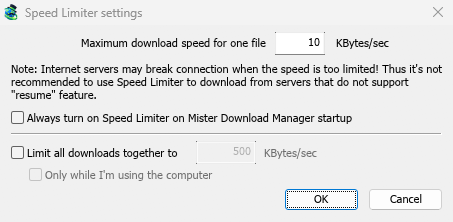
To remove it, open the same window and untick Limit all downloads together to.
Cap each file instead
- In the same window, set Maximum download speed for one file. It starts at 10 KBytes/sec, which is very slow, so set it first.
- Click OK.
- Choose Downloads → Speed Limiter → Turn on.
Each download is then held to that speed. Downloads → Speed Limiter → Turn off gives full speed again. Tick Always turn on Speed Limiter on Mister Download Manager startup to have it on every time.
Slow down one download only
- Double-click the download to open its progress window.
- Open the Speed Limiter tab.
- Tick Use Speed Limiter and type the speed in Maximum download speed.
The other downloads keep their speed.
Some servers drop the connection when the speed is very low. Don't set a tight limit for a server that can't resume (Resume capability: No in the progress window).
Next steps
- Speed Limiter and connections in detail →
- Download overnight →
- Download limits for capped internet plans →
Free, open source, no ads, no trial.
Download Mister Download Manager