
First, look at what happened
Every download keeps a log of its recent events: retries, redirects, the server's answers and errors.
- Hover over the download's Status in the list to see them.
- Or open its progress window (double-click an unfinished download). The connection table shows what each connection is doing, and Retrying with the reason when one fails.
- File Properties (Alt+Enter) shows Last try and its Result.
A download says Error
- Read the reason (hover over Status).
- Select the download and click Resume. Many errors are a server or connection having a bad moment.
- If the link has expired (common for links from sites you sign in to, or links with a time limit in them), get a new one: right-click → Refresh download address. See Resume a broken download.
- If it says the file changed on the server, the file isn't the one MDM started with. Right-click → Redownload to start again from the beginning.
A download starts over instead of resuming
- Look at Resume capability in the progress window. No means the server can't send a file in parts, so MDM can't continue it later.
- Some servers report a new date for the same file every time. Tick Options → Downloads → Ignore file modification time changes when resuming a download.
Downloads are slow
- Check that the Speed Limiter is off: Downloads → Speed Limiter → Turn off. Also look at Downloads → Speed Limiter → Settings... → Limit all downloads together to, which applies even with the limiter off.
- Check the download's own Speed Limiter tab in its progress window.
- Check Options → Connection. A low Default max. conn. number, or an exception for the server, means fewer connections. Rows marked (auto) are servers that refused more connections; MDM can't do more there.
- Check Download limits in the Scheduler. When the limit is reached, downloads wait with Waiting: the download limit is reached (Scheduler).
The browser doesn't send downloads to MDM
- Was MDM installed with the setup, with Set up browser integration ticked? A portable copy can't take browser downloads. Run the setup again to add it.
- Is the extension loaded and turned on? Look for Mister Download Manager Integration Module on the browser's extensions page. In Firefox, a temporary add-on is gone after a restart. See Browser integration.
- Is Options → General → Use advanced browser integration on, and your browser ticked under Capture downloads from the following browsers?
- Is the file's type in Options → File types? Only listed types are taken. The same goes for Download with Mister Download Manager on the right-click menu: if the link's address doesn't end in a listed type, nothing happens.
- Is the site in Don't start downloading automatically from the following sites?
When none of this helps, the browser keeps the download, so nothing is lost.
The Scheduler didn't start the queue
- MDM must be running at that time. Closing the window is fine (it stays in the tray); Tasks → Exit is not.
- Did you click Apply after setting the time?
- Daily starts only on the ticked days. Once at starts only on that date.
- A computer that is asleep doesn't run anything until it wakes.
A video won't download
See If a video won't download.
A magnet link takes a long time
A magnet link has to get the torrent's file list from other peers first. That can take a minute or two, and longer for torrents with few peers. If nobody answers in about three minutes, MDM gives up; try again later, or use the .torrent file if the site offers one.
The setup or MDM won't start
- If Windows says Windows protected your PC, click More info, check that the file is
MisterDownloadManager-<version>-setup.exefrom the Releases page, then click Run anyway. - MDM runs only once. Starting it again brings the running copy's window to the front. If nothing appears, look for MDM's icon in the notification area.
Where your data is
- Installed or the plain zip:
%APPDATA%\misterdownloadmanager. The list and settings are indownloads.json. - Portable: the
datafolder next tomisterdownloadmanager.exe.
To back up your list, quit MDM (Tasks → Exit) and copy downloads.json.
Updates
Help → Check for updates... tells you whether a newer version is out, and what is new in it. Check for updates once a week in that window lets MDM look by itself.
When there is one, Update now downloads it, checks it, puts it in place and restarts MDM; your list, settings and downloads stay as they are:
| You installed | What Update now does |
|---|---|
| Windows, the setup | Runs the new setup without its windows. An installation for all users asks for the administrator's permission. |
| Windows, the portable or plain zip | Replaces the programs in their folder (a portable copy's data folder is kept). |
| Mac | Replaces the app in Applications. |
| Linux, the AppImage or the .tar.gz | Replaces the AppImage, or the programs in their folder. |
| Linux, the .deb or .rpm | Opens the checked package in your system's package installer, which asks for your password. |
MDM installs an update only when the release's list of checksums is signed by MDM's release key and the file matches it; anything else is refused, and Download opens the Releases page instead. Updating this way starts with version 0.2.1: earlier versions open the Releases page.
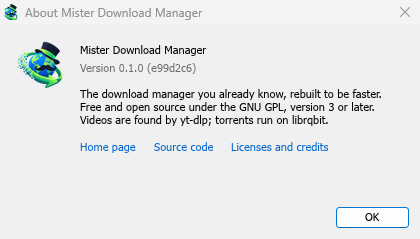
Help → About Mister Download Manager shows the version you have.
Reporting a problem
Choose Help → Report a problem. It opens the bug report form on GitHub with your MDM version, your system and its version, how MDM was installed and its interface language already filled in. Describe what happened, what you expected and the steps that make it happen. For a download, include the address if you can share it, and the reason shown under Status.
You can also open the form yourself; it asks for the same details.
Next steps
Free, open source, no ads, no trial.
Download Mister Download Manager