
From a copied link to an opened file in a minute or two.
Steps
- In your browser, right-click the link to the file and choose Copy link.
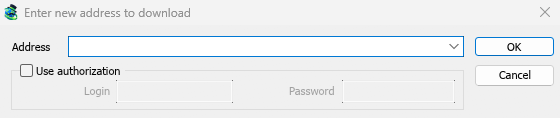
- In MDM, click Add URL on the toolbar (or press Ctrl+N). The address is already filled in.
- Click OK.
- Download File Info shows the file's name, its size and where it will be saved. The folder depends on the file's type: a ZIP goes to
Downloads\Compressed, a video toDownloads\Video, and so on. Change the folder or the category if you like. - Click Start Download.
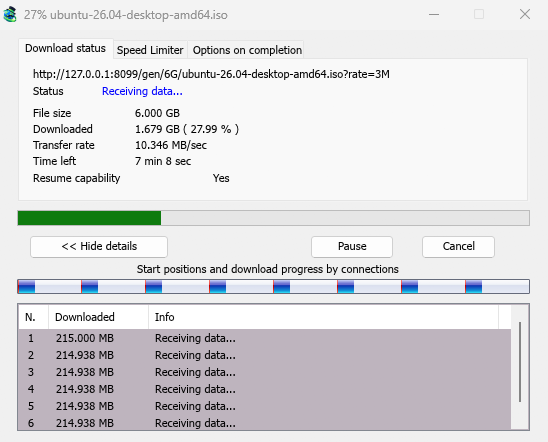
- The progress window shows the download: its speed, the time left, and what each connection is doing.
- When it finishes, Download complete appears. Click Open to open the file, or Open folder to see it in Explorer.
The download stays in the list under Finished. To get rid of the entry later, select it and press Delete; tick Also delete the file from disk only if you want the file gone too.
If something goes differently
- The address isn't filled in: the clipboard didn't hold a web address. Paste it into Address yourself.
- The video window opens instead: the address is a video's page. See Download a video from a page.
- MDM asks to create a folder: the folder doesn't exist yet. Click Yes.
- The download stops with an error: see Resume a broken download.
Next steps
- Catch downloads from your browser →
- All the ways to add a download →
- The progress window in detail →
Free, open source, no ads, no trial.
Download Mister Download Manager