
A queue is a list of downloads that run in order, a few at a time. The Scheduler starts and stops queues by the clock, and decides what happens when a queue is done.
Queues
MDM comes with two queues:
- Main download queue — where Download Later, batch downloads and imported lists go. A download leaves it when it is finished.
- Synchronization queue — finished downloads stay in it instead of leaving. It is the only queue that takes finished downloads.
You can add your own queues in the Scheduler, or with Create new queue in a download's right-click menu.
Put downloads in a queue
- In Download File Info, click Download Later and pick the queue.
- Or select downloads in the list, right-click and choose Add to queue, then the queue. A download that is already in a queue shows Move to queue instead.
- To take a download out of its queue, right-click it and choose Delete from queue. The download stays in the list.
The Q column shows which downloads are in a queue. Under Queues in the categories pane, select a queue to see only its downloads.
Start and stop a queue
- Start Queue and Stop Queue on the toolbar start and stop the Main download queue. The arrow next to each button lists every queue.
- Downloads → Start queue and Downloads → Stop queue list them too.
- Or right-click a queue under Queues and choose Start now or Stop.
A running queue starts its downloads in list order, a few at a time (four by default). When one fails, it moves to the end of the queue and is tried again 30 seconds later. The queue stops when nothing is left to download.
The Scheduler window
Open it with Scheduler on the toolbar or Downloads → Scheduler. Right-clicking a queue and choosing Schedule or Edit queue opens it on that queue.
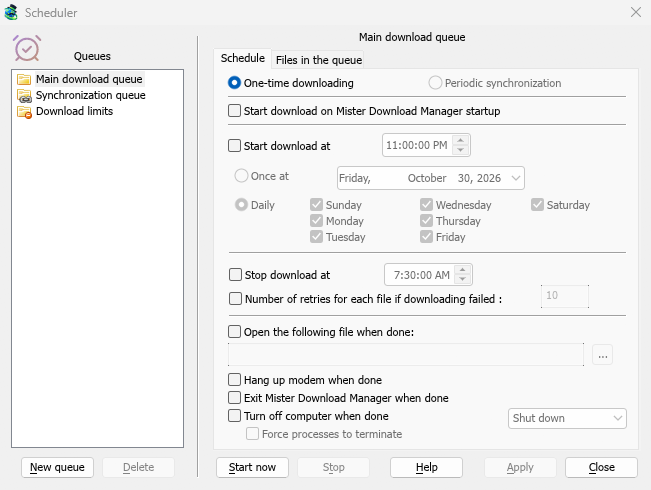
The queues are on the left, with Download limits below them. The right side shows the selected queue on two tabs, Schedule and Files in the queue.
- New queue asks for a name and adds a queue. Delete removes one of your own queues; the two built-in queues can't be deleted. A deleted queue's downloads stay in the list.
- Start now and Stop run or halt the selected queue straight away.
- Apply saves your changes. Close closes the window.
Schedule: starting and stopping on time
- Start download on Mister Download Manager startup — start the queue whenever MDM starts.
- Start download at — a time, then either:
- Once at a date, or
- Daily, on the days you tick.
- Stop download at — a time to stop the queue if it is still running.
- Number of retries for each file if downloading failed — how often a failed download is tried again before the queue gives up on it. Without it, MDM keeps trying.
To set a time, click a part of it (hours, minutes, seconds) and use the arrows, the mouse wheel, Up / Down or the number keys. Left and Right move between the parts.
MDM has to be running for a schedule to fire. It can sit in the tray: closing the main window doesn't quit it.
Schedule: when the queue is done
- Open the following file when done — for example a sound, a script or a program. ... picks the file.
- Hang up modem when done — ends a dial-up connection, if you use one.
- Exit Mister Download Manager when done.
- Turn off computer when done — choose Shut down, Sleep or Hibernate.
- MDM first shows a 30-second countdown. Cancel stops it; Turn off now goes ahead at once.
- Force processes to terminate closes programs that would otherwise hold Windows up.
Files in the queue
- Download [N] files at the same time — how many of the queue's downloads run together. The rest wait their turn.
- The list shows the queue's downloads in the order they will run. The arrow buttons under it move the selected download down or up; the cross takes it out of the queue.
Download limits
For an internet plan with a data cap, select Download limits on the left:
- Tick Download limits.
- Fill in Download no more than [N] MBytes every [H] hours. It starts at 200 MBytes every 5 hours.
- Click Apply.
When the limit is reached, MDM stops downloading. New downloads show Waiting: the download limit is reached (Scheduler). Everything resumes on its own when the period is over. Show warning before stopping downloads tells you when this happens and when downloads will go on.
The same setting is in Options → Connection.
Next steps
Free, open source, no ads, no trial.
Download Mister Download Manager