
The progress window
Each running download has its own progress window. It opens when the download starts; to open it again, double-click the download in the list.
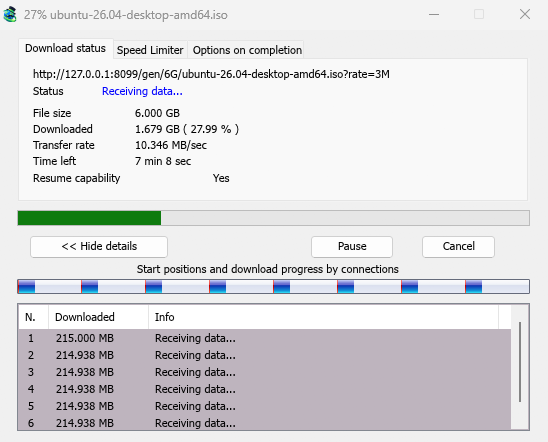
The Download status tab shows:
- Status — Connecting..., Receiving data..., Paused, Complete or the error.
- File size, Downloaded and Transfer rate.
- Time left.
- Resume capability — Yes if the server lets MDM continue the download later, No if it doesn't.
Show details >> (open by default) adds the connection view:
- A bar of the whole file, showing where each connection started and how far it has got (Start positions and download progress by connections).
- A table with one row per connection: its number, how much it has downloaded, and what it is doing right now.
The buttons:
- Pause stops the download and keeps what it has; Resume continues it.
- Cancel stops the download and closes the window. The download stays in the list and can be resumed.
- Closing the window with its close box keeps the download running.
Two more tabs:
- Speed Limiter — a limit for this download only. See below.
- Options on completion — shows where the file will be saved. Untick Show download complete dialog to skip the Download complete box for this file only.
Hide tab goes back to Download status.
When a download finishes
Download complete shows the file's size, its address and where it was saved. Choose Open, Open with..., Open folder or Close. You can also drag the small box at the bottom right into Explorer, an email or a chat to drop the file there.
Tick Don't show this dialog again to stop seeing it. It can be turned back on in Options → Downloads → Show download complete dialog.
How MDM uses connections
MDM splits a file into parts and downloads them over several connections at once:
- It uses 8 connections by default. You can choose 1, 2, 4, 8, 16, 24 or 32 in Options → Connection → Default max. conn. number.
- When a connection finishes its part, it takes over half of the largest part still left, so no connection sits idle while another one is still working.
- A connection that is far slower than the others is dropped and opened again.
- Some servers allow only a few connections. MDM notices this and stops asking that server for more. What it has learned shows in Options → Connection under Exceptions, marked (auto).
- You can set a number for a server yourself: Options → Connection → New, then type the server's name and the number of connections.
Each connection writes straight into the file's place on disk, in a part file named <name>.mdm.part next to the final file. When every part is done, MDM checks the size and renames it. There is no temporary folder and no joining step at the end.
Resuming
A download resumes where it stopped: after you stop it, after the connection drops, or after Windows or MDM crashes. MDM saves how far each part has got as it goes.
- A connection that fails is retried on its own. The progress window's table shows Retrying and the reason.
- To continue a stopped download, select it and click Resume on the toolbar (or File → Download Now).
- Before continuing, MDM checks that the file on the server is still the same. If it changed, the download stops with the file changed on the server. Use Redownload to start again from the beginning.
- If Resume capability is No, the server can't send a file in parts. MDM then downloads it over one connection, and a download that stops has to start over.
Resume a broken download covers expired links too.
Speed Limiter
The Speed Limiter keeps MDM from using all of your connection.
For every download
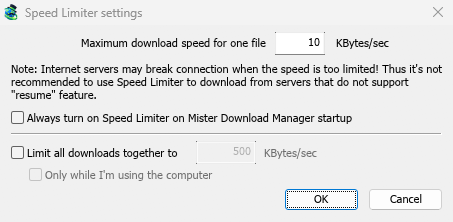
- Choose Downloads → Speed Limiter → Settings....
- Set Maximum download speed for one file in KBytes/sec. It starts at 10, so set it before you turn the limiter on.
- Click OK.
- Choose Downloads → Speed Limiter → Turn on. Turn off gives full speed again.
Always turn on Speed Limiter on Mister Download Manager startup turns it on each time MDM starts.
For all downloads together
In the same window, tick Limit all downloads together to and set the speed. This caps MDM as a whole, however many files are downloading. It applies whenever it is ticked, whether the per-file limiter is on or off.
Tick Only while I'm using the computer to apply it only while you use the mouse or keyboard. After a minute without input, MDM goes back to full speed.
For one download
In the download's progress window, open the Speed Limiter tab:
- Tick Use Speed Limiter.
- Set Maximum download speed in KBytes/sec. The new limit applies at once.
- Tick Remember Speed Limiter settings for this file on download stop/resume to keep this limit for the file: it applies again when you resume it later, even after restarting MDM.
Some servers drop the connection when the speed is very low. Avoid a tight limit for servers that can't resume (Resume capability: No).
Next steps
Free, open source, no ads, no trial.
Download Mister Download Manager