

Downloads that wait their turn
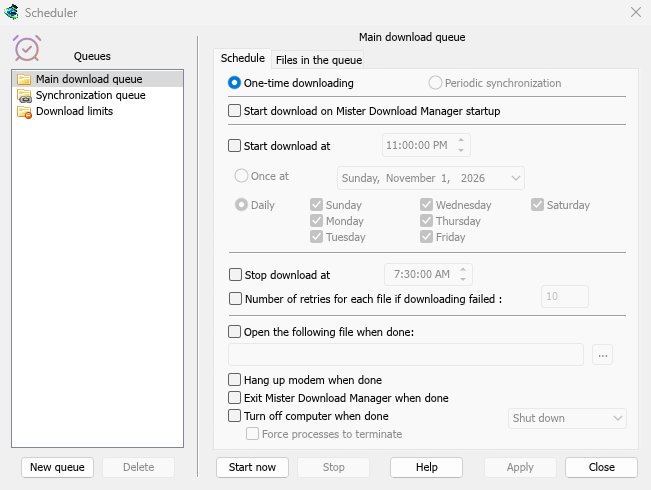
A queue is a list of downloads that run in order, a few at a time. Click Download Later in Download File Info, or right-click downloads in the list and choose Add to queue. The Q column marks them, and Queues in the categories pane shows each queue on its own.
A queue runs four downloads at once by default. Set another number on its Files in the queue tab, or 1 to fetch them one by one. A download that fails moves to the end and is tried again 30 seconds later. Besides the Main download queue, you can make as many queues as you like.
Started and stopped by the clock
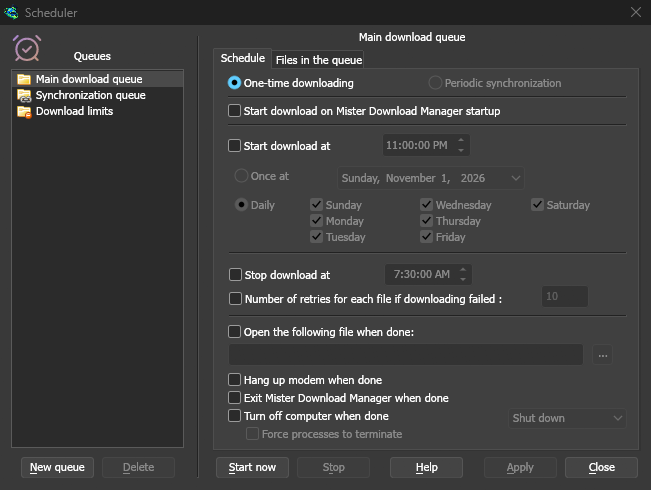
On a queue's Schedule tab, tick Start download at and choose a time, Once at a date or Daily on the days you tick. Stop download at halts whatever is left, for example before work in the morning. A queue can also start whenever MDM starts.
MDM has to be running for a schedule to fire. Closing the main window is fine: MDM keeps going in the notification area.
When the queue is done
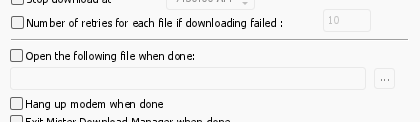
MDM can open a file, such as a sound or a script, exit, or turn the computer off with Shut down, Sleep or Hibernate. A 30-second countdown comes first, so if you are still at the computer, Cancel stops it.
Woken up for the queue
Tick Wake the computer to run this queue and a sleeping computer is woken a minute before the start time, so the network is back when the queue begins. It stays awake while the queue runs; afterwards its own sleep settings apply again. The line under the option says when the next wake is, or why there can't be one.
The computer has to be asleep, not shut down. On Windows the power plan must allow wake timers: the Scheduler says when it doesn't, and Change opens the setting. On Linux an administrator allows it once. On macOS only an administrator can schedule a wake, so the option is greyed there. MDM never asks for an administrator's password.
Under a data cap
Download limits keeps a capped internet plan in check: no more than a set number of megabytes every few hours. When the limit is reached, downloads wait, and they carry on by themselves when the period is over.
Download overnight walks through it step by step.
Free, open source, no ads, no trial.
Download Mister Download Manager