

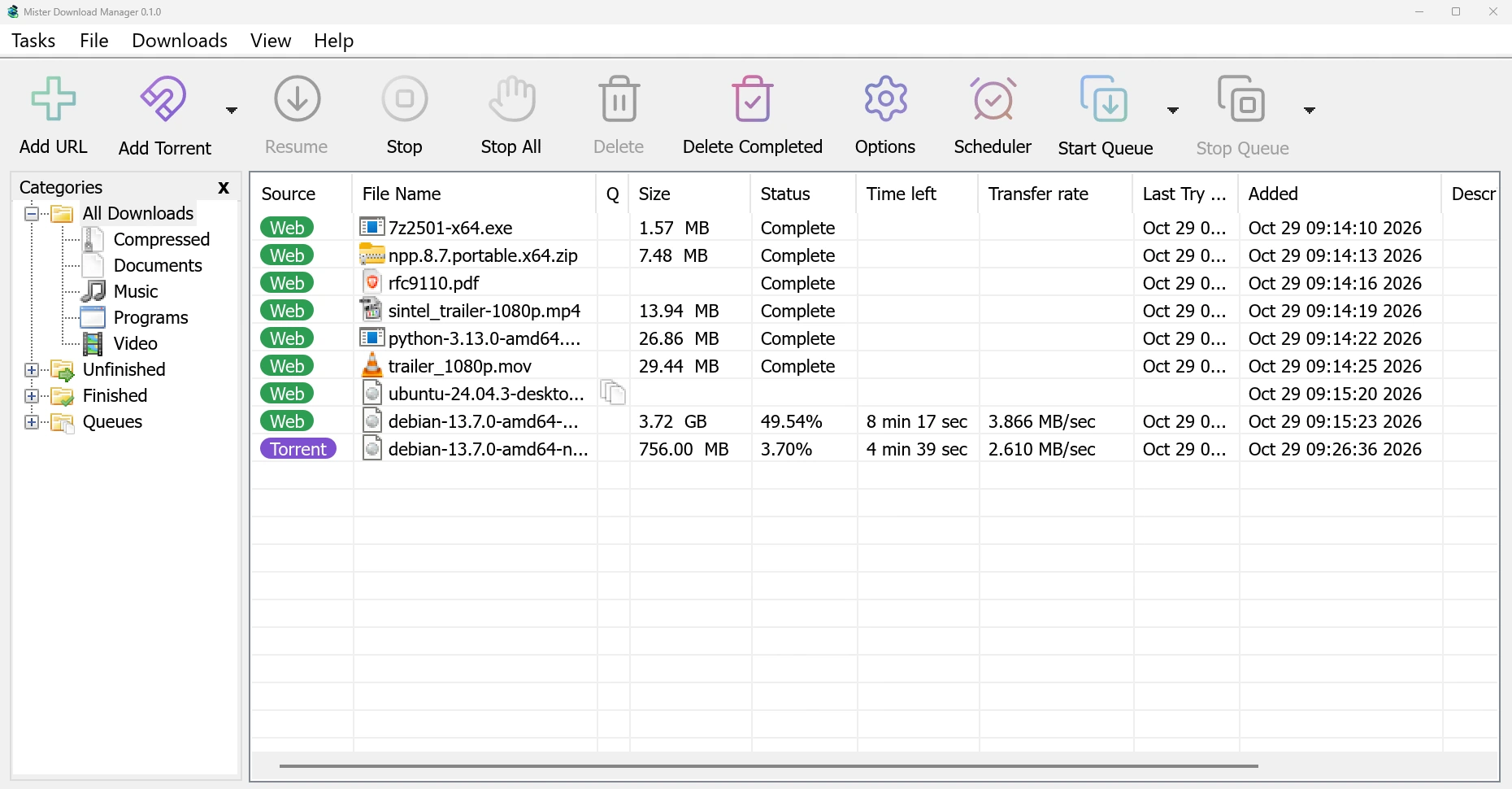
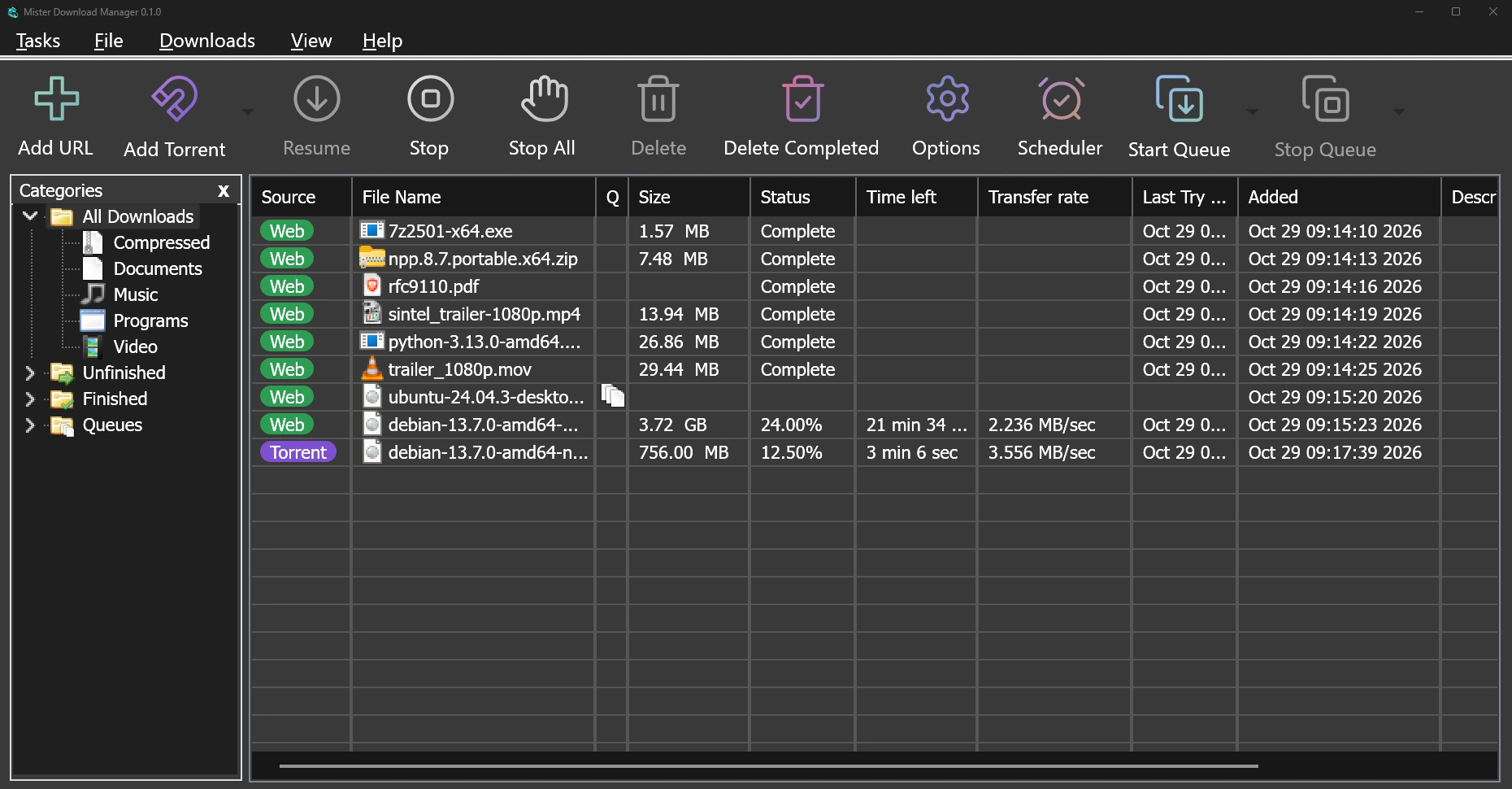
Every file finds its folder
A download falls into a category by its file type: General, Compressed, Documents,
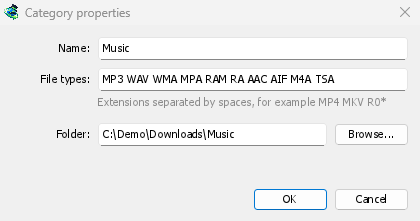
Music, Programs or Video, and torrents into Torrents. Each category has its own
folder inside your Downloads folder, so a ZIP file lands in Downloads\Compressed and a film in
Downloads\Video without you choosing.
Pick another folder in Download File Info and, by default, it becomes the category's folder from then on. Options → Save to shows each category's file types and folder in one place.
Finished and unfinished, at a glance
The pane on the left has four branches. All Downloads holds everything, Unfinished what isn't complete yet and Finished what is, each by category. Queues lists each queue. The top branches show how many downloads they hold, and right-click → Browse opens a category's folder.
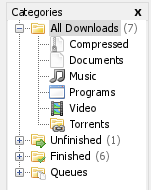
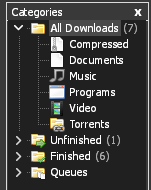
MDM opens where you left it, with the same branches open and the same category shown. View → Hide categories gives the list the whole window.
Make your own
Right-click → Add category makes one for what you collect, say Books for EPUB MOBI:
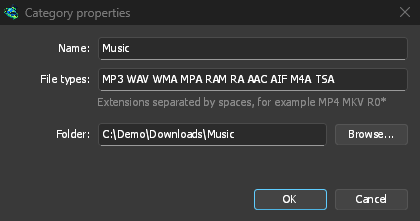
a name, the file types separated by spaces (* allowed) and a folder. Change it later with
Properties, or remove it with Delete. The files stay where they are.
The built-in ones are yours too
Compressed, Documents, Music, Programs and Video can be renamed, given other file types or deleted, like your own. A renamed category keeps its folder. Deleting one asks what happens to its downloads: move them to General, or take them off the list. Their files stay either way.
Changed your mind? Options → Save to → Restore the built-in categories brings them back as they came, and leaves your own categories alone. General and Torrents still change only their folder.
Free, open source, no ads, no trial.
Download Mister Download Manager