

Your list comes over in one file
In IDM, choose Tasks → Export → To IDM export file. In MDM, choose Tasks → Import → From
IDM export file and pick that .ef2 file. Each download comes over with its address, the page
it came from (its referrer) and its cookies. The downloads join the Main download queue,
ready to start.
A plain list of links works too
Tasks → Import → From text file reads a text file and picks out every web address in it.
You can also drop a .txt or .ef2 list straight onto the download list. Untick what you don't
want, and add the rest to the queue.
Going the other way is just as easy: Tasks → Export → To text file saves one address per
line, and To IDM export file writes an .ef2 file.
Nothing new to learn
MDM is a separate program, written from scratch, but its windows are laid out the way IDM users expect: the toolbar, the categories, the download list, the progress window with every connection, queues and the Scheduler. It is free, with no trial and no sign-up.
IDM is the more mature product, refined over many years. MDM finished faster in our benchmark: a 1 GiB file in 1.0 s against IDM 6.42's 5.5 s, on the same PC and the same test server. The FAQ sums up the other differences.
Choose before you add
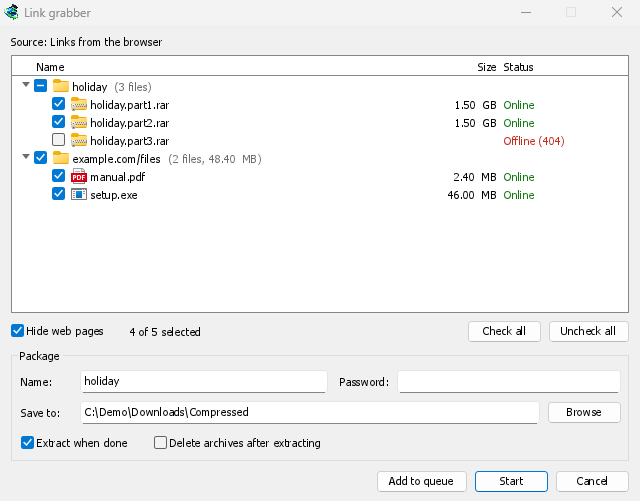
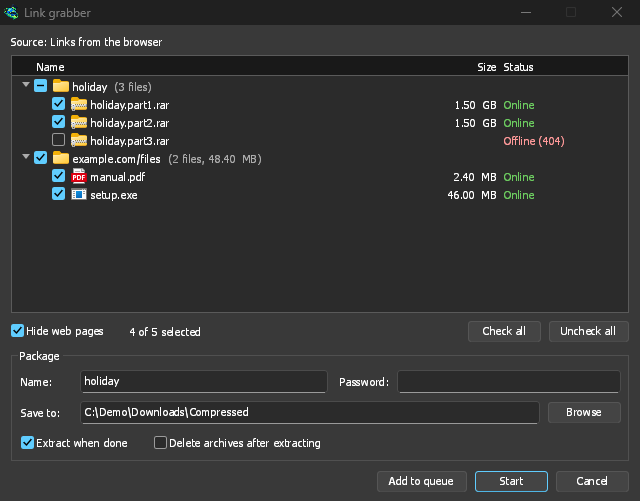
An import opens Link grabber, which sorts the links into packages: the volumes of one archive together, the links of one page together, the rest in Various files. Each link is looked up for its real name, its size and whether the server still has it, and the ones that are gone come unticked. A link already in your list goes under Already in the list, unticked.
Add to queue adds the ticked links to the Main download queue, as the import always did,
and Start starts the queue as well. An .ef2 file still brings each download's referrer and
cookies. See Link grabber and archives.
Free, open source, no ads, no trial.
Download Mister Download Manager