

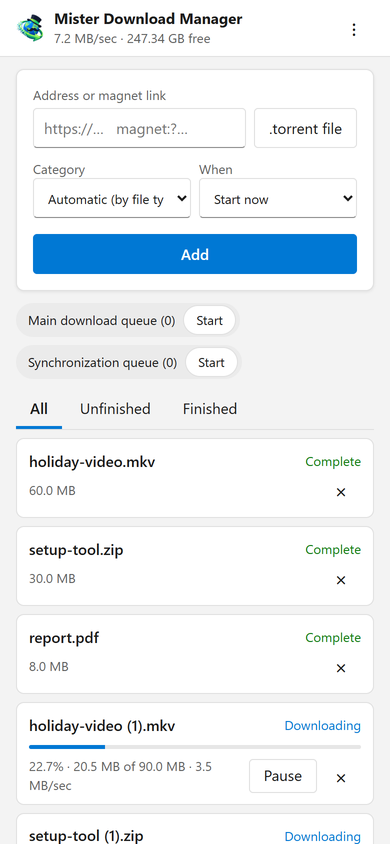
Your downloads, in your pocket
The page adds a download's address, a magnet link or a .torrent file from the phone, with a
Category and When: start now, or wait in a queue. It lists every download with its
progress, speed and size, pauses and starts each one, and removes it, with its file if you ask.
It starts and stops the queues too. The bar at the top shows the total speed and the free space
where your downloads go.
Downloads added from the phone behave like any other: they go to the category's folder and follow the queues, the Scheduler and the speed limits. The page speaks your phone's language when MDM has it, and follows its light or dark mode.
Paired once, with a code
Turn it on in Options → Remote, then click Pair a device.... Scan the QR code with the phone's camera, or type the address and the 8-digit code. A code works once, for ten minutes.
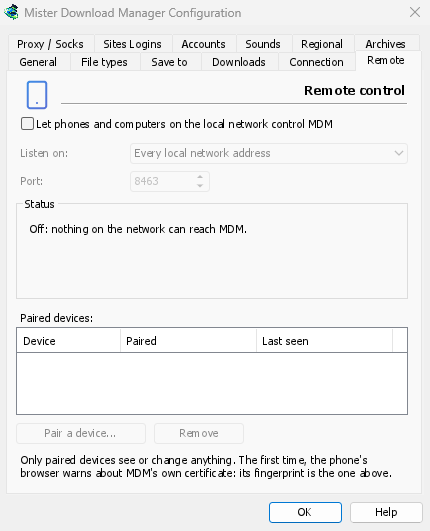
The first time, the phone's browser warns about the certificate. That is expected: MDM made it on your computer, and no public authority knows it. Options → Remote shows its fingerprint to compare. Add the page to the phone's home screen to keep it one tap away.
Only your devices, only at home
The remote control is off until you turn it on. It answers only the devices you paired, each removable at once in Options, and listens only on the computer's private network addresses, never on one the internet can reach. Everything goes over HTTPS, and web pages can't use it.
A paired phone handles downloads and queues, nothing more: it can't change settings, open windows on the computer or see your folders.
Away from home
Don't open it to the internet through your router. To reach it while you're away, use a VPN to your home network, such as WireGuard or Tailscale; with Tailscale, choose its address under Listen on. The first time, Windows may ask whether MDM may use the network: allow it on private networks, or the phone can't reach MDM.
To run MDM on a home server instead, see Server mode.
Free, open source, no ads, no trial.
Download Mister Download Manager